Contents · Previous: API Explorer · Next: What this is
Settings
Settings is the long page of preferences. The top is how the website looks. The middle is which model servers EdgeQuake may call. The bottom is how the map is drawn and how questions are asked. Scroll the page. The pictures below are slices of that one scroll.
Nothing here deletes your documents. The red buttons at the bottom clear saved questions or reset these switches. The button that deletes a workspace is on Workspaces, not here.
Appearance
The title is Settings, subtitle Customize your EdgeQuake experience.
Appearance:
- Theme is System, Light, or Dark. System follows your computer.
- Language is the language of the labels. Here it is English. The globe in the header changes the same setting.
Application Attribution is a name the server can send along with model calls, so the provider’s logs show who the caller was. App ID is edgequake, App Name is EdgeQuake, App URL is an address such as http://localhost:3000. Save attribution stores those three. The Provider header catalog under the button is a reference table: for each provider, which headers are sent. You do not edit that table. It is there so you can see that OpenAI gets one header, Anthropic gets another, and so on.
Further down the same page, still above the connections, are the server-wide model defaults and a priority switch. Server first means a value saved in Settings wins over an environment variable. Environment first means the variable wins. The page prints the effective model, for example the chat model and the embedding model the server is using right now. Leave those dropdowns alone on the demo.
How the map is drawn
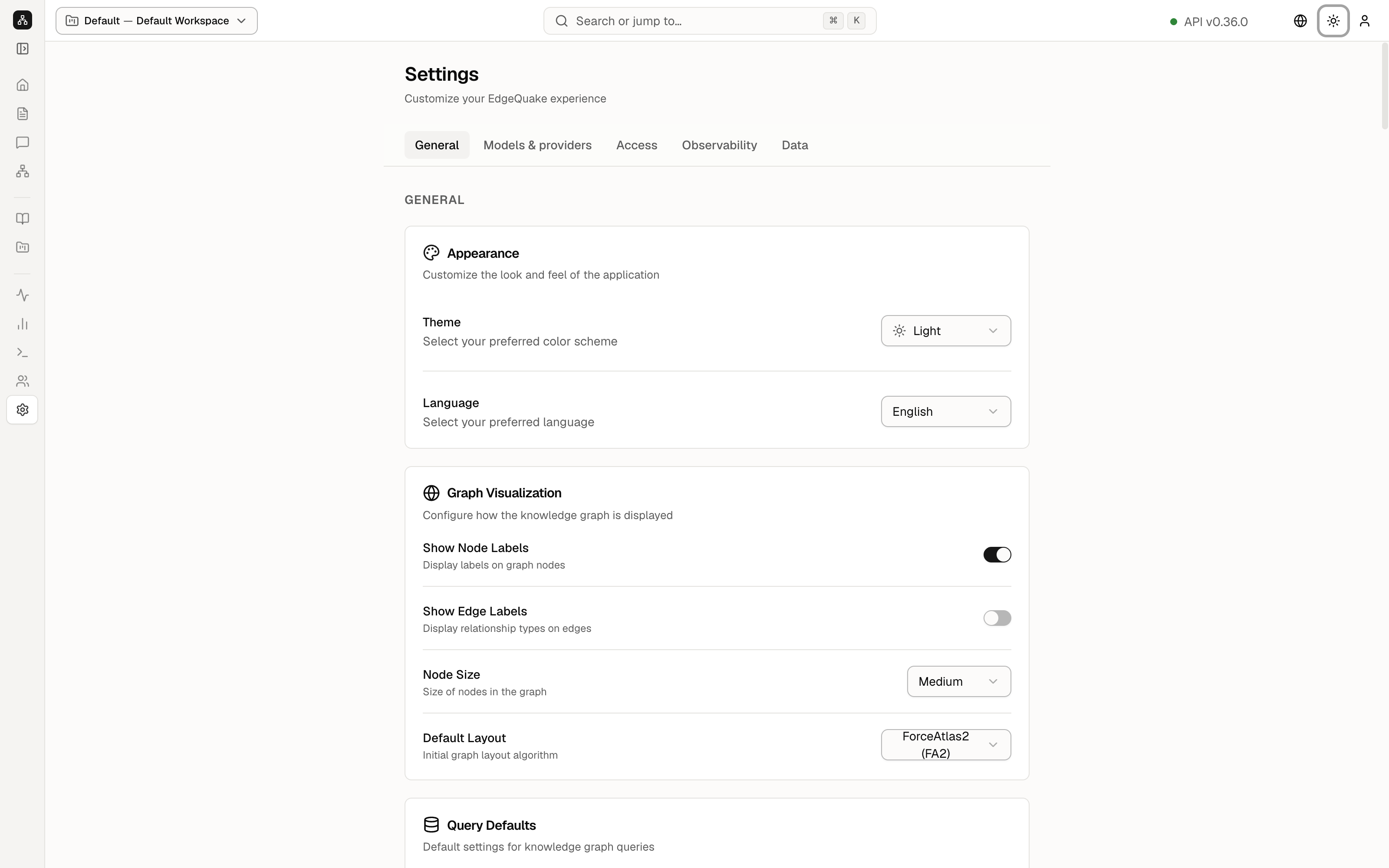
Graph Visualization changes the map only. It does not change the data.
- Show Node Labels prints the name on each dot. It is on.
- Show Edge Labels prints the relationship type on each line. It is off, which keeps a crowded map readable.
- Node Size is Small, Medium, or Large. It is Medium.
- Default Layout is the algorithm that places the dots. It is ForceAtlas2 (FA2), which pulls connected dots together and pushes the rest apart.
The cards just above this one on the scroll, Vision LLM Default and Workspace Embeddings, repeat what Workspaces already shows: the vision model magistral-small-latest, and Rebuild Embeddings for mistral/mistral-embed at dimension 1024.
How questions behave
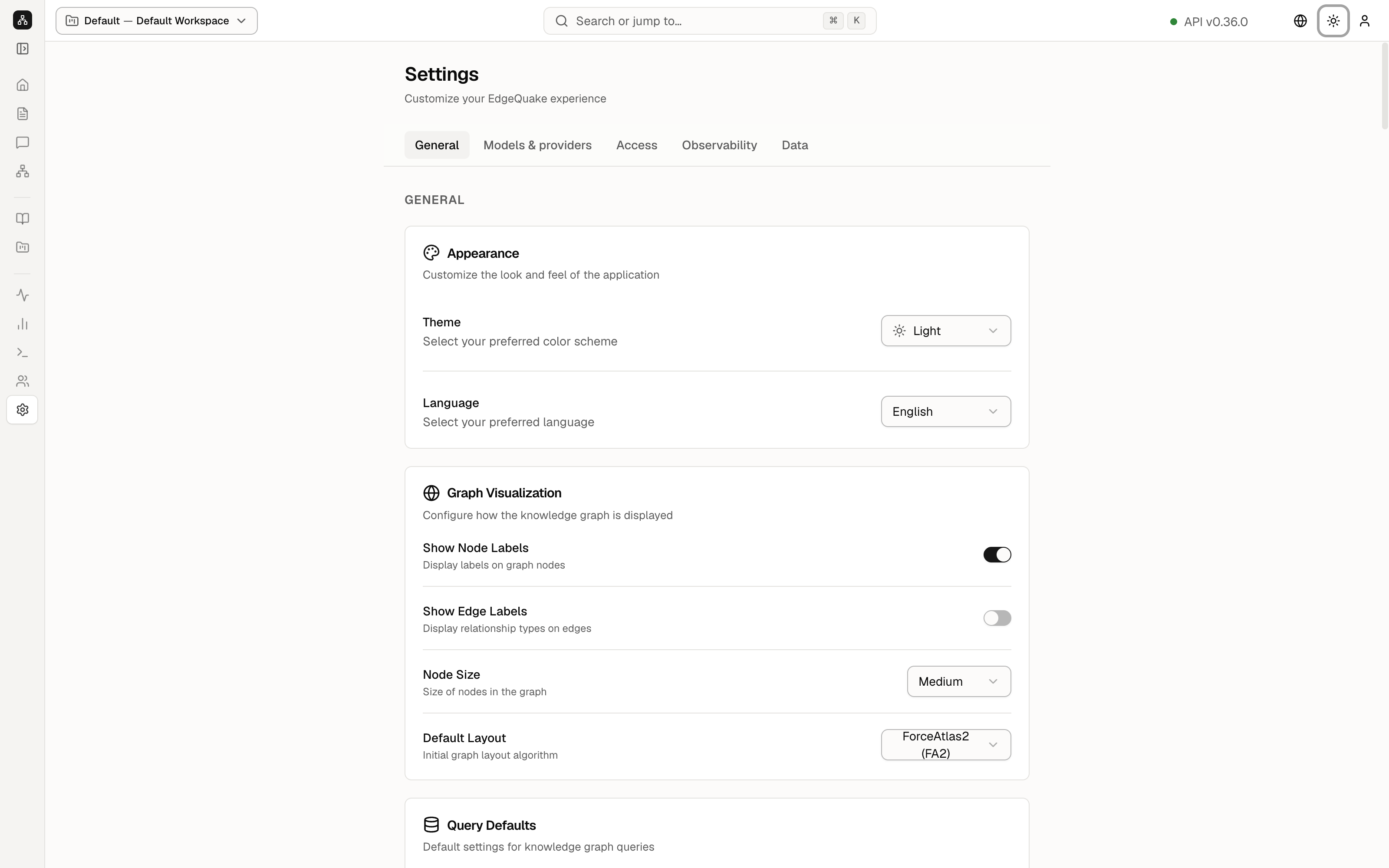
Query Defaults:
- Default Query Mode is Smart · Recommended. That is the same Smart choice explained in Ask a question. New conversations start here. You can still change it for one question from the menu on the question box.
- Enable Streaming is on. The answer appears as it is written, instead of all at once at the end.
- Enable Reranking is on. After the search finds a pile of passages, a second step reorders them so the closer ones come first.
- Rerank Top K is 10. Ten passages survive that second step.
Ingestion Settings change how future files are read:
- Enable Gleaning is on. Gleaning is a second pass over the same chunk, looking for entities the first pass missed.
- Max Gleaning Passes is 1. The second pass runs once, not three times.
- LLM Summarization is on. When the same entity is found in several chunks, a model merges the descriptions into one paragraph instead of keeping a pile of duplicates.
Connections
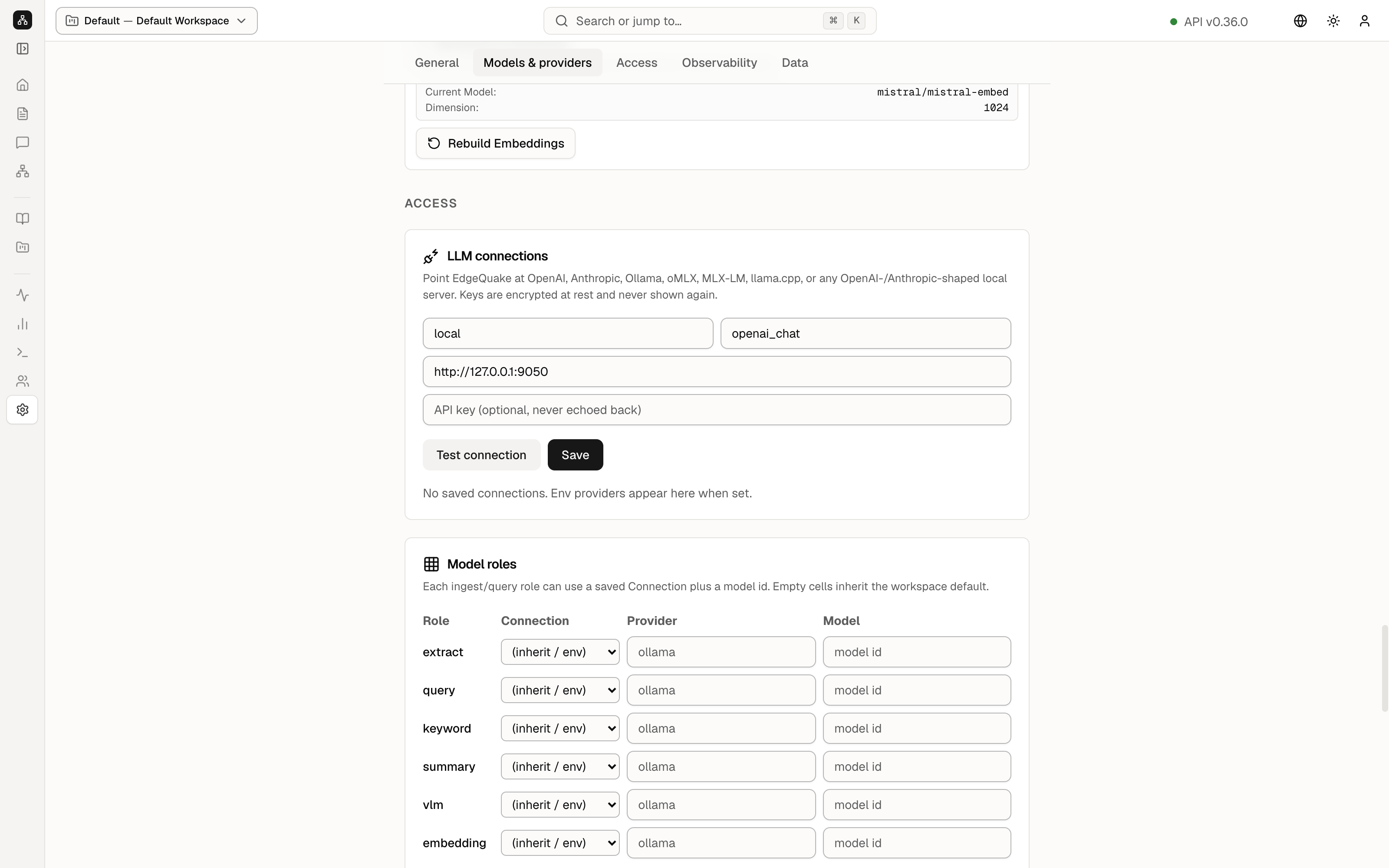
A connection is a saved address of a model server, plus a key if that server wants one. Keys are stored encrypted. After you save, the key is not shown again. The box even says API key (optional, never echoed back).
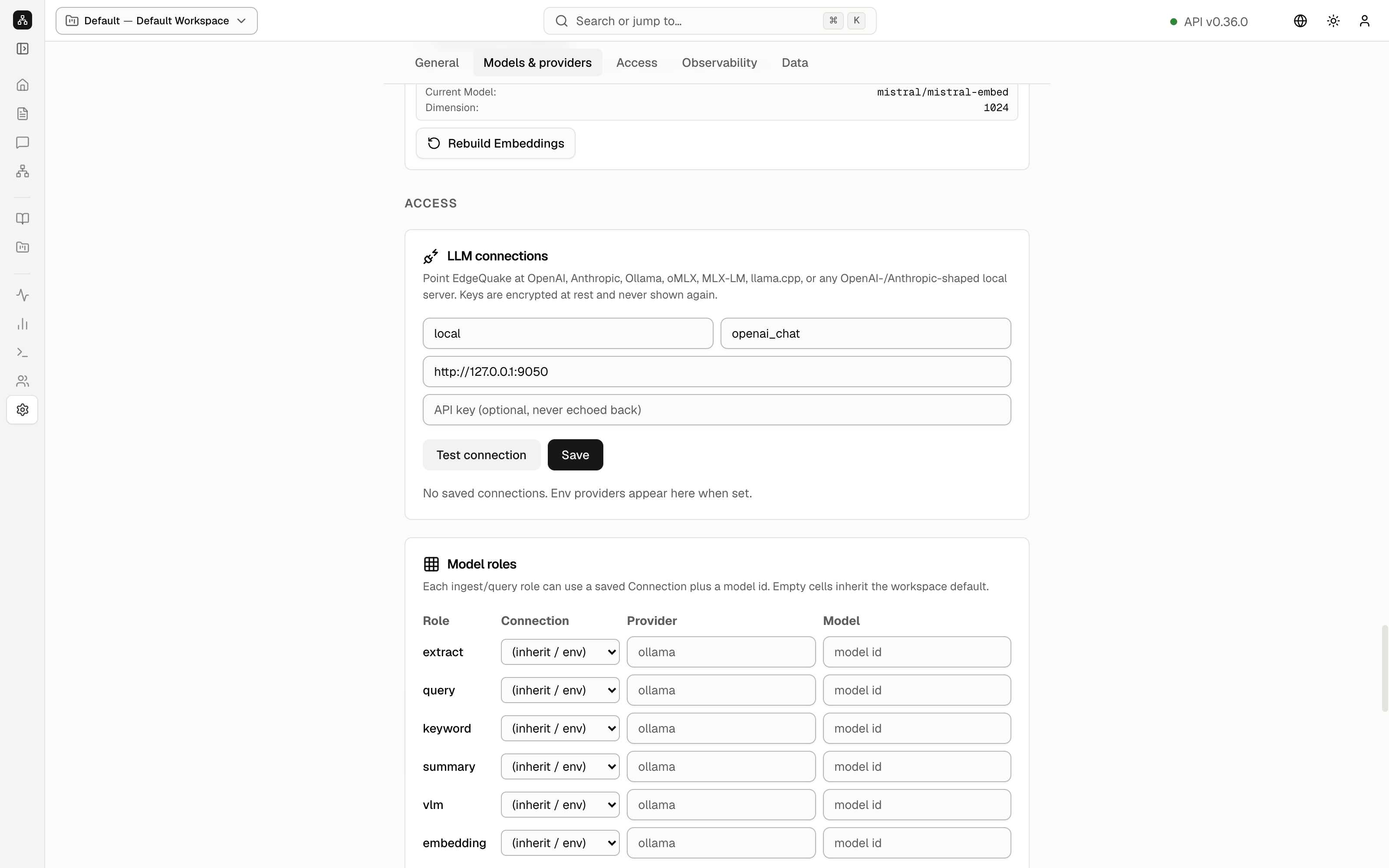
In the picture the form is filled with an example that has not been saved: the name local, the kind openai_chat, the address http://127.0.0.1:9050, and an empty key box. Test connection checks that the address answers. Save stores it. Leave this form as you found it on the demo.
Under the form, this demo already has three connections that came from the server environment, each marked env and key set:
- ollama at
http://host.docker.internal:11434 - openai at
https://api.openai.com/v1 - lmstudio at
http://host.docker.internal:1234/
key set means a key is stored. The page does not reveal the key. Do not type a new key into the public demo.
Workspace role matrix, just below, lets each job (extract, query, keyword, summary, vision, embedding) pick one of those connections. Empty cells inherit the workspace default. Save role matrix stores that table. On your own server this is how you point “reading files” at one model and “answering questions” at another.
Data management
Data Management is marked in red because two of the buttons throw information away. Your documents and the map are not among that information. The card says so.
- Settings Backup — Export downloads these switches as a JSON file, which is a plain text file of the settings. Import reads such a file back.
- Query History — Clear History deletes saved conversations. It asks you to confirm. On the demo, do not press it. People use those conversations. The picture in Ask a question is one of them.
- Reset All Settings — Reset Settings puts the switches on this page back to defaults. It asks you to confirm. Documents stay.
Keep going
You have walked every screen. What this is is the short version if you want to start again. The command-line version of the same jobs is in docs/tutorials.