Contents · Previous: Ask a question · Next: Extra knowledge
The map
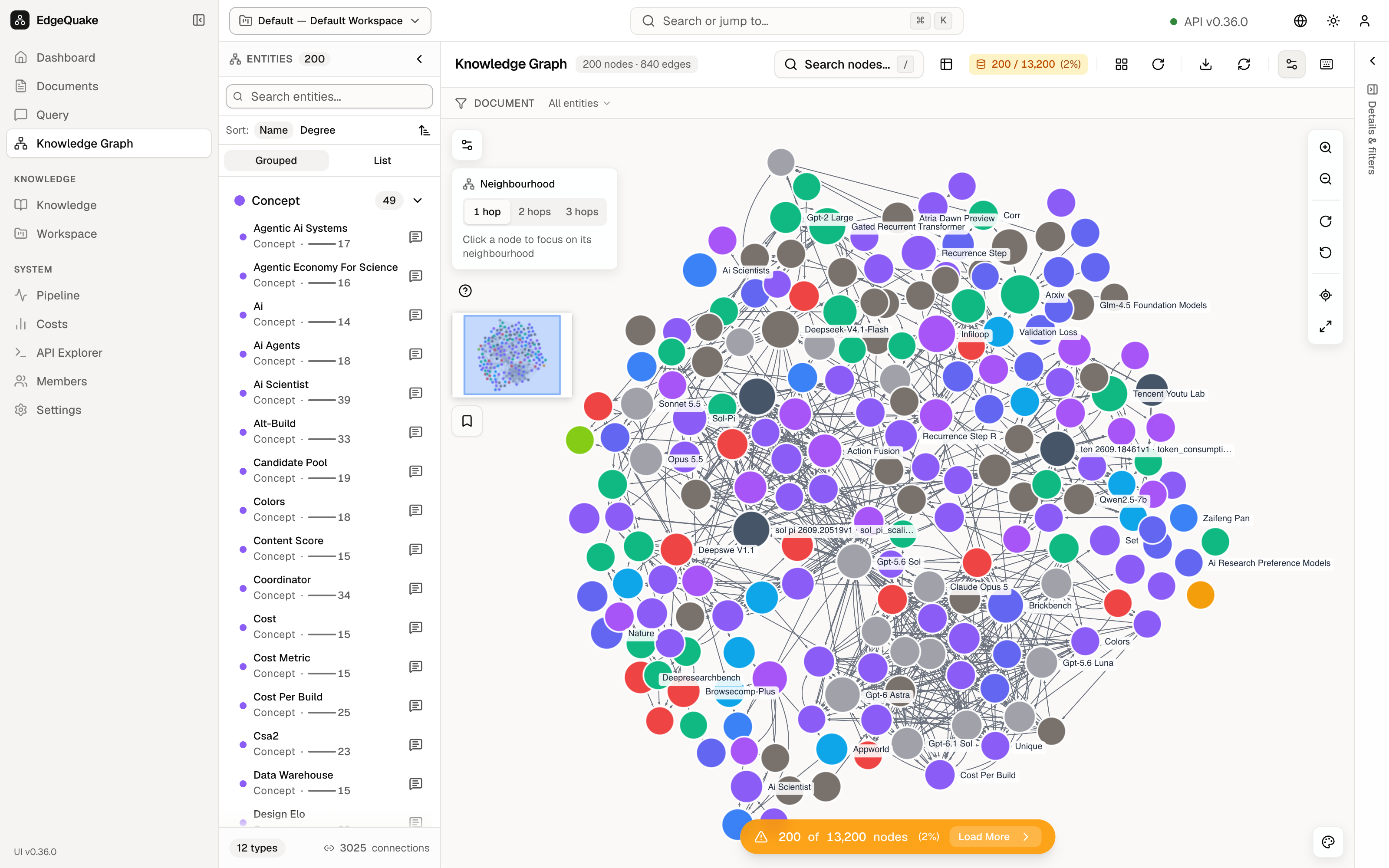
Knowledge Graph is the picture of the workspace. Each dot is an entity. Each line is a relationship. The sidebar calls this page Knowledge Graph.
The demo map is large: 13,200 dots and many thousands of lines. The page draws a sample so the browser stays usable. The orange bar at the bottom says 200 of 13,200 nodes (2%). Load More asks for the next batch.
The entity list
The left column is titled ENTITIES with the count 200 (the ones currently drawn). Search entities… filters that list as you type. Sort is Name or Degree. Degree is how many lines touch that dot. Grouped bunches them by kind. List is one flat list.
Each row is a name, a kind such as Artifact, and a number. Deepseek-V4.1-Flash is an Artifact with 130 connections. Click a row to select that dot. The right-hand Details panel fills in, and the map moves to that dot.
The canvas
The center title is Knowledge Graph, with 200 nodes · 549 edges for the sample on screen.
The toolbar on that title row, from left to right after the title:
- Search nodes… finds a dot by name. The × clears the search.
- The table icon switches the dots to a table. Click it again to come back to the picture.
- The badge 200 / 13,200 (2%) is the same “how much is drawn” count as the orange bar.
- The layout control and Apply Layout place the dots again.
- Export downloads a picture of the map.
- Refresh reloads the dots from the server.
- The settings icon opens picture options for this view (the same ideas as Graph Visualization on Settings).
- The keyboard icon lists shortcut keys.
- Zoom in, Zoom out, and Fit to screen change the camera. The same three sit on the right edge of the picture.
Around the canvas:
- The + and − buttons zoom in and out. The fit button scales the map so the drawn dots all fit.
- Neighbourhood chooses how far to walk when you focus on one dot. 1 hop is the dots one line away. 2 hops and 3 hops go further. The card says Click a node to focus on its neighbourhood.
- The small overview square in the corner is the whole sample, with a rectangle for the part you are looking at.
Colors match kinds of entity. The right-hand FILTERS list is the legend:
- Search entities or types… filters the legend.
- ENTITY TYPES says 11 types and 200 of 200 nodes visible.
- Each row is a color, a name, a count, and an eye. The eye hides or shows that kind. On this day the counts included Artifact 45, Concept 33, Content 30, Method 28, Organization 16, Other 16, Person 13, Event 8, Data 6, Drawing 4, and Creature 1.
- Hide all turns every kind off. Click the eyes again to bring them back.
DOCUMENT and All entities above the canvas limit the dots to one file or show every file.
Until you click a dot, Details says Select a node and Click any node to explore its connections and sources.
One dot
Click Deepseek-V4.1-Flash in the list. The row turns black, the map centers on that dot, and Details fills in.
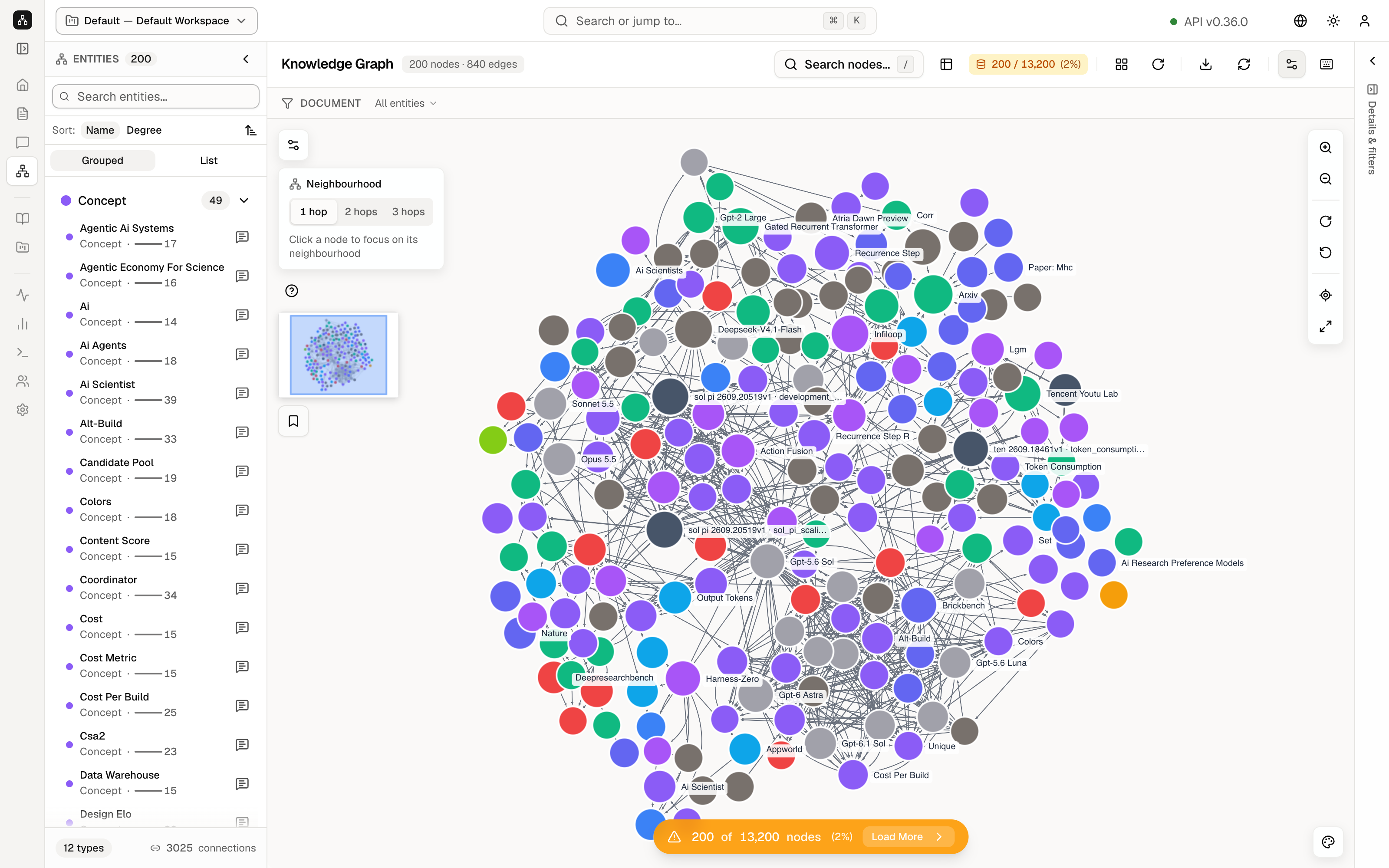
The panel shows:
- The name Deepseek-V4.1-Flash and a pill Artifact.
- DESCRIPTION. Here it is a short line about a multimodal model from DeepSeek.
- PROPERTIES. description repeats that line. source_chunk_ids and source_document_id are the ids of the chunk and the file this fact was read from. logical_node_id is the map’s own name for the dot, in capitals:
DEEPSEEK-V4.1-FLASH. entity_type is ARTIFACT. - Copy All copies those properties.
The icons next to the name open the same entity in other views, including the file it came from. That is the same trail you see on a document and on an answer.
The Neighbourhood card may still be open. 0 nodes in reach on a tight zoom means the walk has not been applied yet. Pick 1 hop to pull in the neighbours.
Keep going
Next: Extra knowledge. The models that decide which kinds of dots exist are set on Workspaces.