Contents · Previous: Settings · Next: What this is
Members and invites
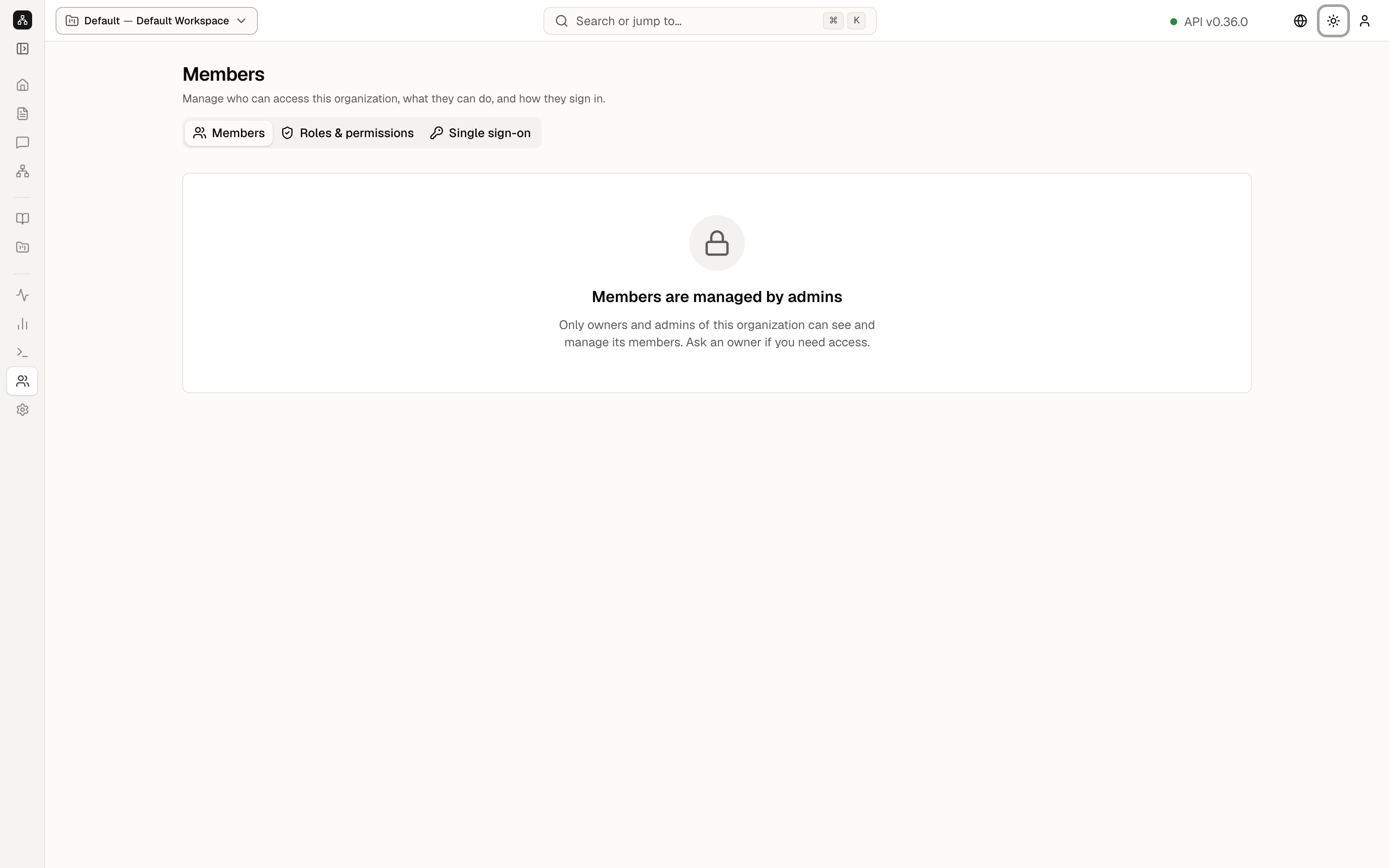
From v0.36.0, every organization has a Members screen. You invite people by email, set their role, suspend or restore them, and create one-time sign-in or password-reset links — without needing a mail server first.
Settings links to Members. The old duplicated user card is gone.
The directory
Open Members from the sidebar or Settings. You see everyone in the current organization: name, email, role, status, and when they last signed in.
- Use search and filters to find a person or a role (for example viewers only).
- Open a row for the detail sheet: change role, suspend, restore, or create an access link.
- The last owner cannot demote or remove themselves — the UI says so.
Invite someone
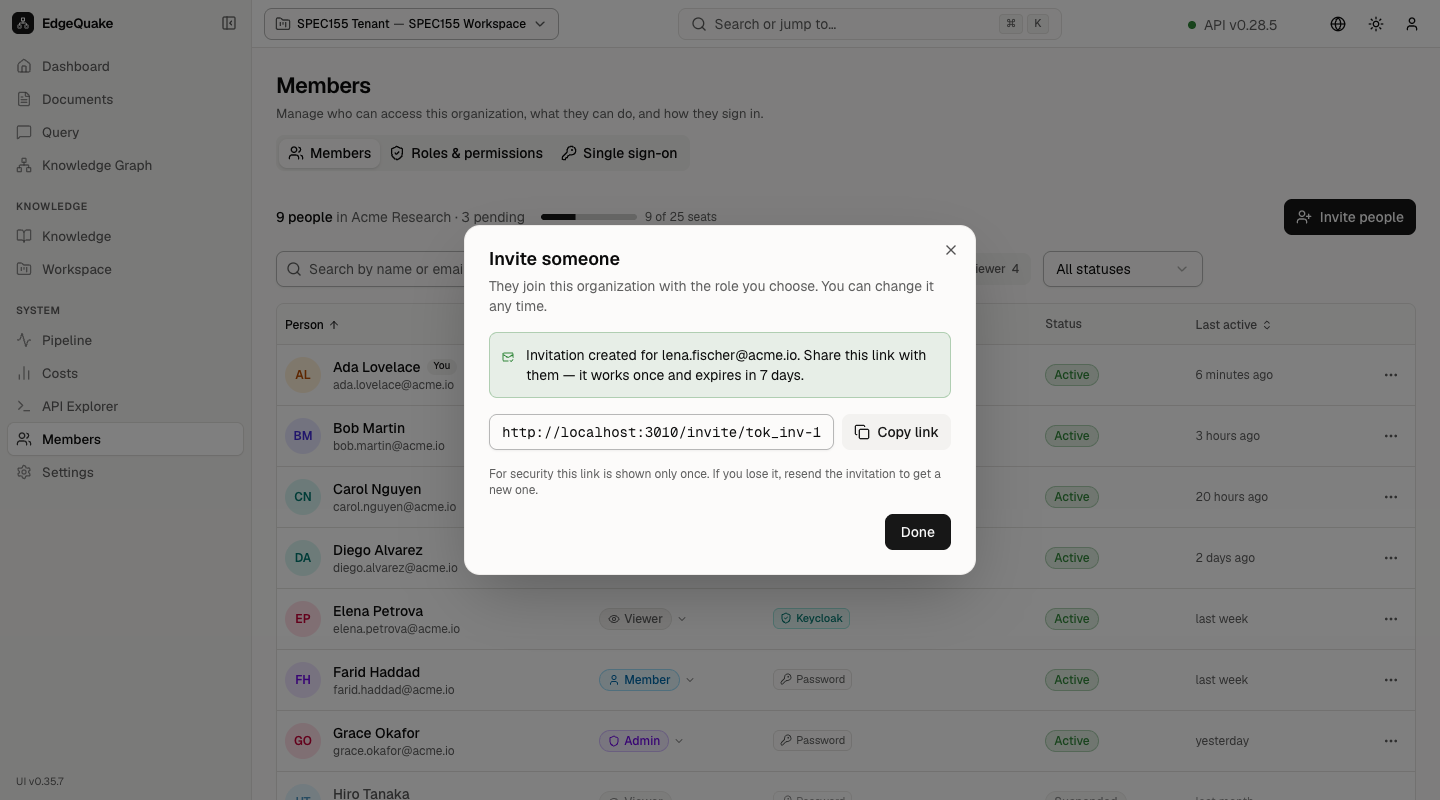
Click Invite. Enter an email and a role. EdgeQuake creates a token (shown once), stores only a hash, and gives you a link that works for seven days. Copy the link and send it yourself — there is no SMTP requirement in the default install.
The person opens the link, sets a password, and joins the organization.
Detail sheet and magic links
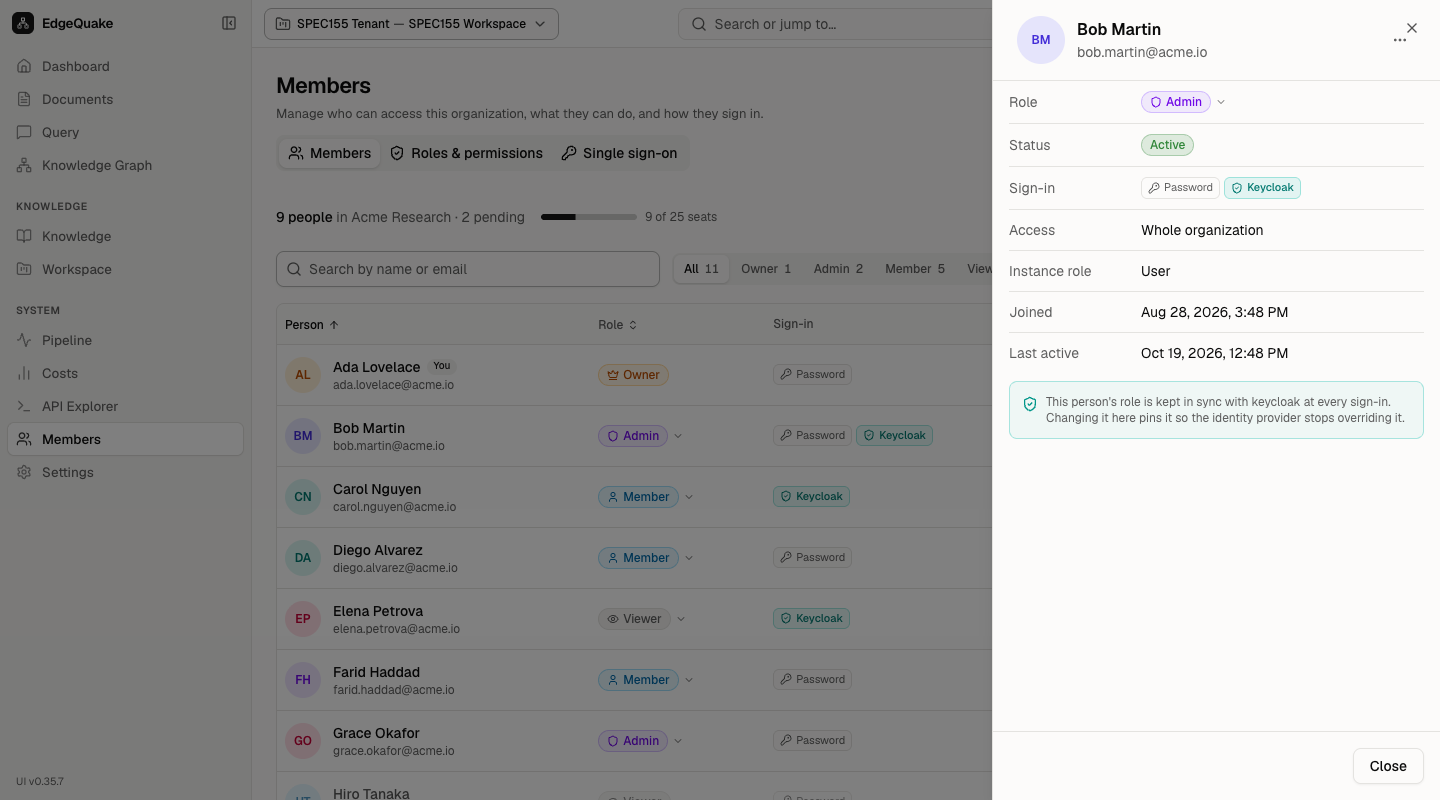
From a member’s detail sheet you can:
- Change role (within what your own role allows)
- Suspend or restore
- Create a magic sign-in link (short-lived) or a password-reset link
- Remove the person when policy allows
SSO accounts follow different rules: some fields stay pinned to the identity provider. Platform admins and cross-organization users have extra guards so a manager cannot accidentally elevate or re-invite the wrong person.
Keep going
You have finished the picture tour. Return to the tutorial index, try the live demo, or run the stack locally.