Contents · Previous: Sign in and getting around · Next: Documents
Dashboard
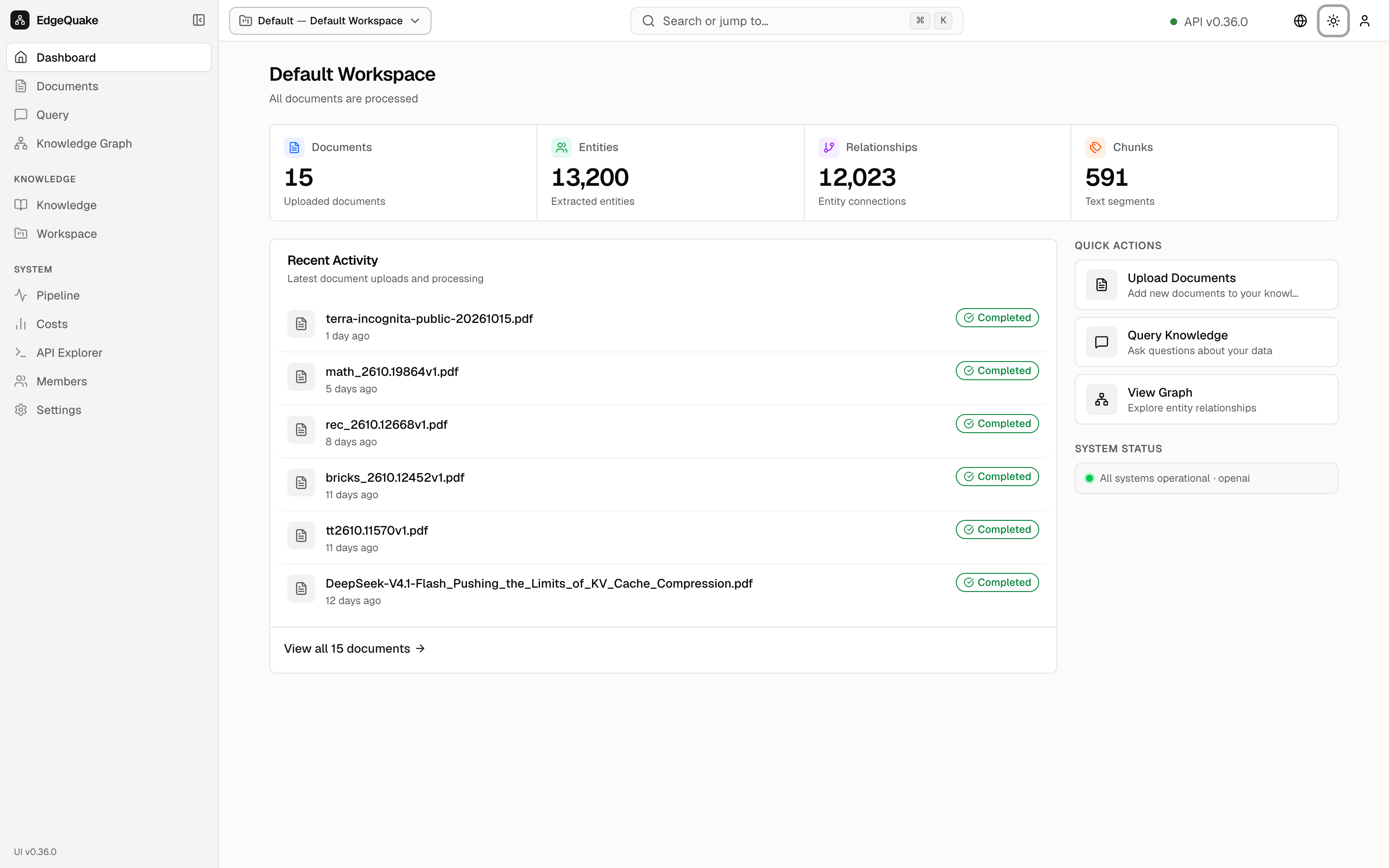
The Dashboard is the home page. It answers one question: how big is this workspace, and is it healthy?
The title is the workspace name, Default Workspace. The line under it, All documents are processed, means every file has been read. If something were still running, that line would say so and you would open Pipeline.
The four counts
- Documents — 15. These are the uploaded files. The caption says Uploaded documents.
- Entities — 13,200. These are the things pulled out of the files. The caption says Extracted entities.
- Relationships — 12,023. These are the lines between those things. The caption says Entity connections.
- Chunks — 591. These are the short pieces the files were cut into. The caption says Text segments.
The numbers are for the workspace in the header chip. Switch workspace and the cards change.
The three shortcuts
- Upload Documents — “Add new documents to your knowledge base.” This opens Documents.
- Query Knowledge — “Ask questions about your data.” This opens Query.
- View Graph — “Explore entity relationships.” This opens the map.
Recent activity
Recent Activity lists the latest uploads. Each row is a file name, how long ago it arrived, and a green Completed pill. On this day the top rows included terra-incognita-public-20261015.pdf and math_2610.19864v1.pdf.
The green pill at the right of the heading says All systems operational · openai. That is the model provider the server is using for answers right now.
View all 15 documents at the bottom jumps to the full file list.
Keep going
Next: Documents. If you would rather ask a question first, go to Ask a question.