Contents · Previous: What this is · Next: Dashboard
Sign in and getting around
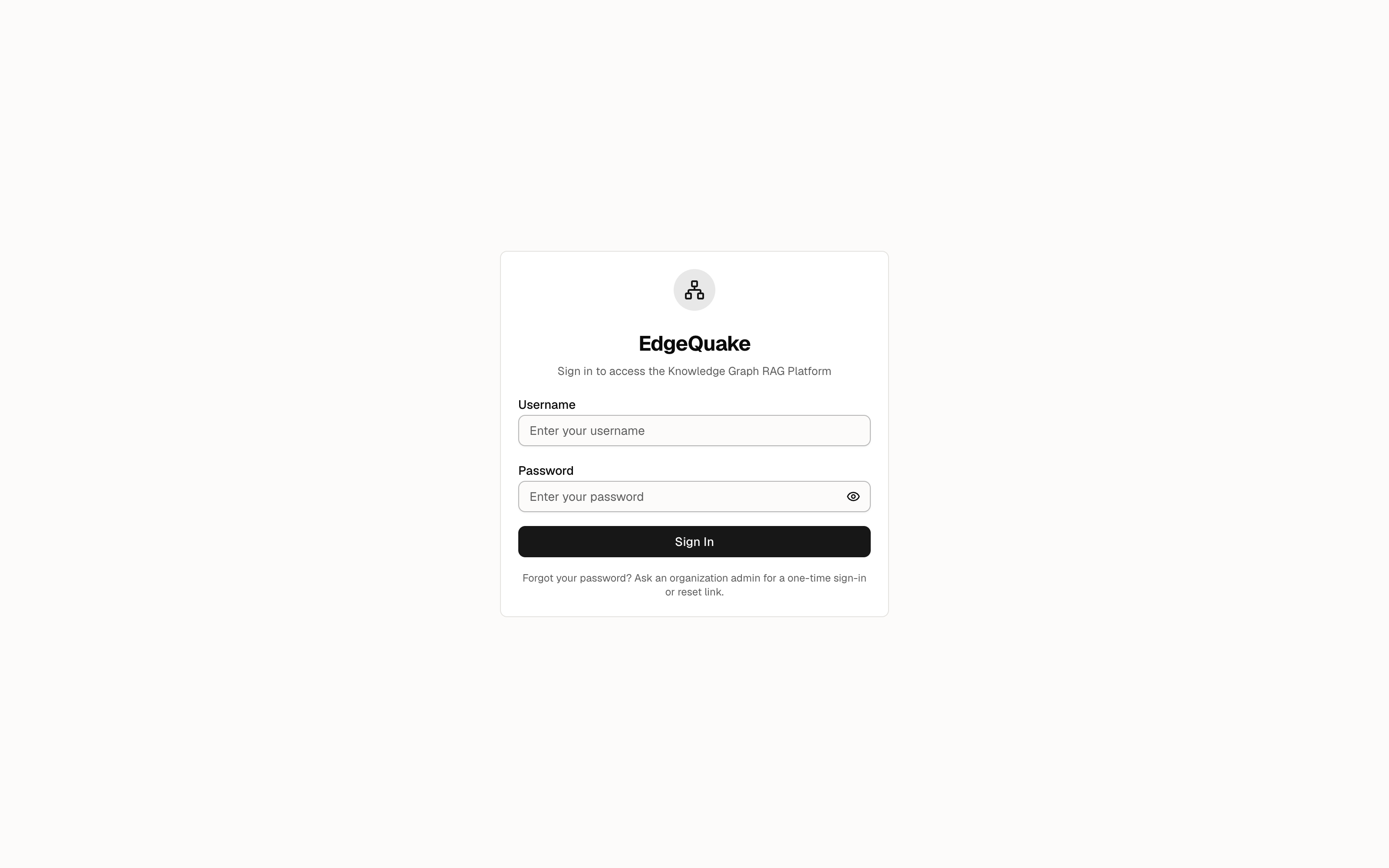
Open https://demo.edgequake.com/. If you are not signed in, you get a single card.
The card has two boxes and one button:
- Username is the account name. On this demo the administrator account is
admin. - Password is the secret that matches that name. The eye on the right of the box shows or hides what you typed. Leave it hidden.
- Sign In checks those two values and opens the Dashboard.
Type the username and password you were given. This tour does not print a password.
The sidebar
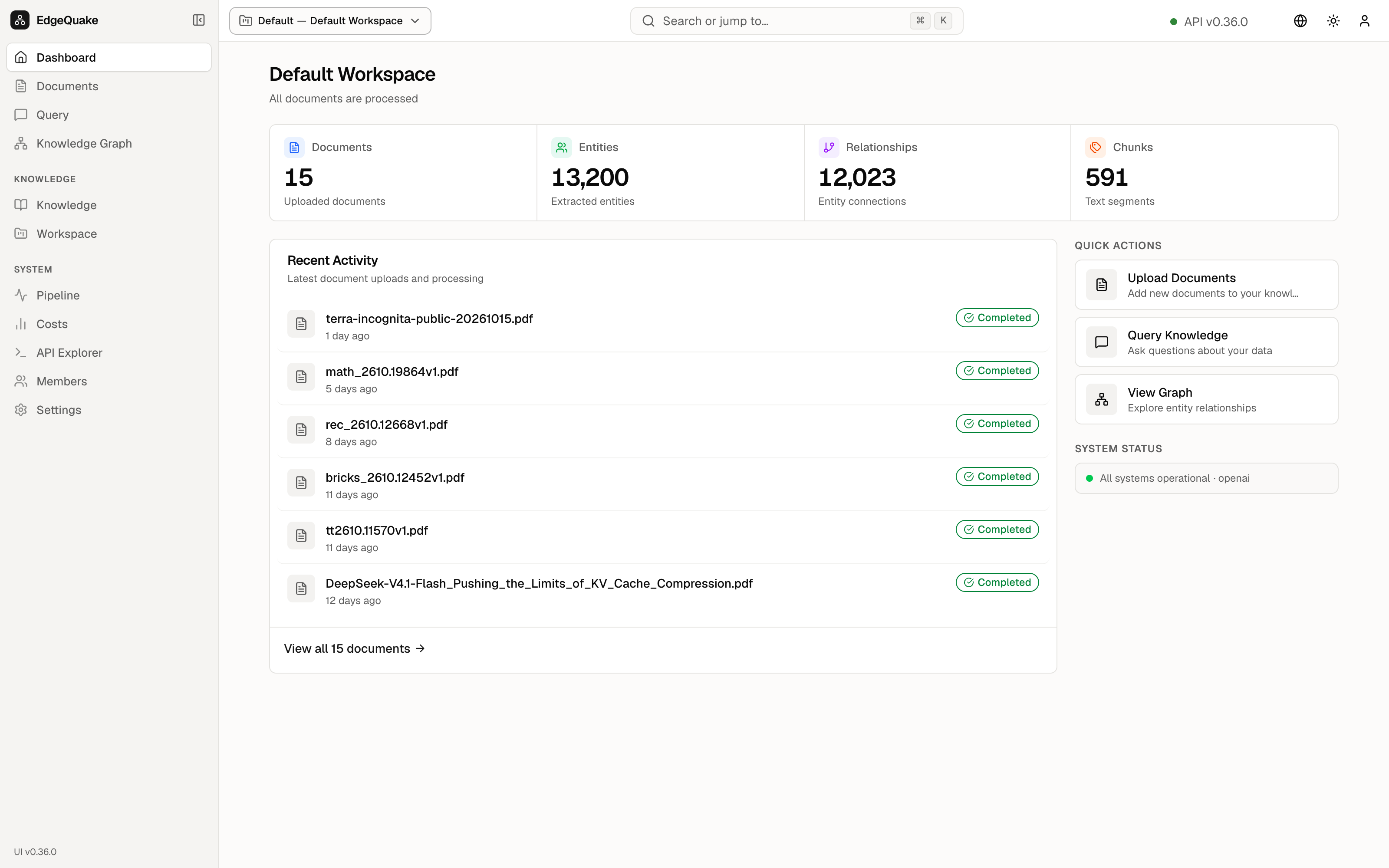
After you sign in, a column stays on the left on every page. The top is the EdgeQuake logo, which always returns to the Dashboard. Then four everyday items: Dashboard, Documents, Query, Knowledge Graph. Under the label KNOWLEDGE are Knowledge and Workspace. Under the label SYSTEM are Pipeline, Costs, API Explorer, and Settings.
The black pill is the page you are on. Collapse, at the bottom of the column, shrinks the names to icons. The footer of the column shows EdgeQuake and UI v0.36.0, which is the website build in these pictures.
The header
The thin bar across the top has four things:
- The chip Default — Default Workspace is the organization and the collection you are looking at. Click it to switch.
- The green API v0.36.0 is the server. Green means it answered a health check.
- The globe changes the language of the labels.
- The sun or moon switches light and dark.
- The person icon is the user menu, including sign out.
Switching organization or workspace
Click the chip. A small panel opens over the Dashboard.
The panel has a search box, then two lists:
- Organization. This is the tenant. Default is checked, with the subtitle System Default Tenant. Create New Tenant starts a new organization. On a shared demo, leave that alone.
- Workspace. Default Workspace is checked. The short name under it is
default. Create New Workspace starts another collection of files inside the same organization.
A checkmark is the one you are in. Pick a row to move. Press Escape, or click outside the panel, to close it without changing anything.
The rest of this tour stays inside Default — Default Workspace.
Keep going
Next: Dashboard. The same sidebar is on every later page, so later chapters name only what is new on that screen. The Workspace page is where you change how that collection is read.